
S&E reimbursements workflow
With the BILL Spend & Expense API, you can create a reimbursement to be repaid from budget funds for an out-of-pocket expense. No more hunting down a physical card when a coffee shop does not accept digital wallets! Pay for your favorite latte with cash, and use the BILL v3 API to get your money back with a receipt, reimbursement request, and approval workflow.
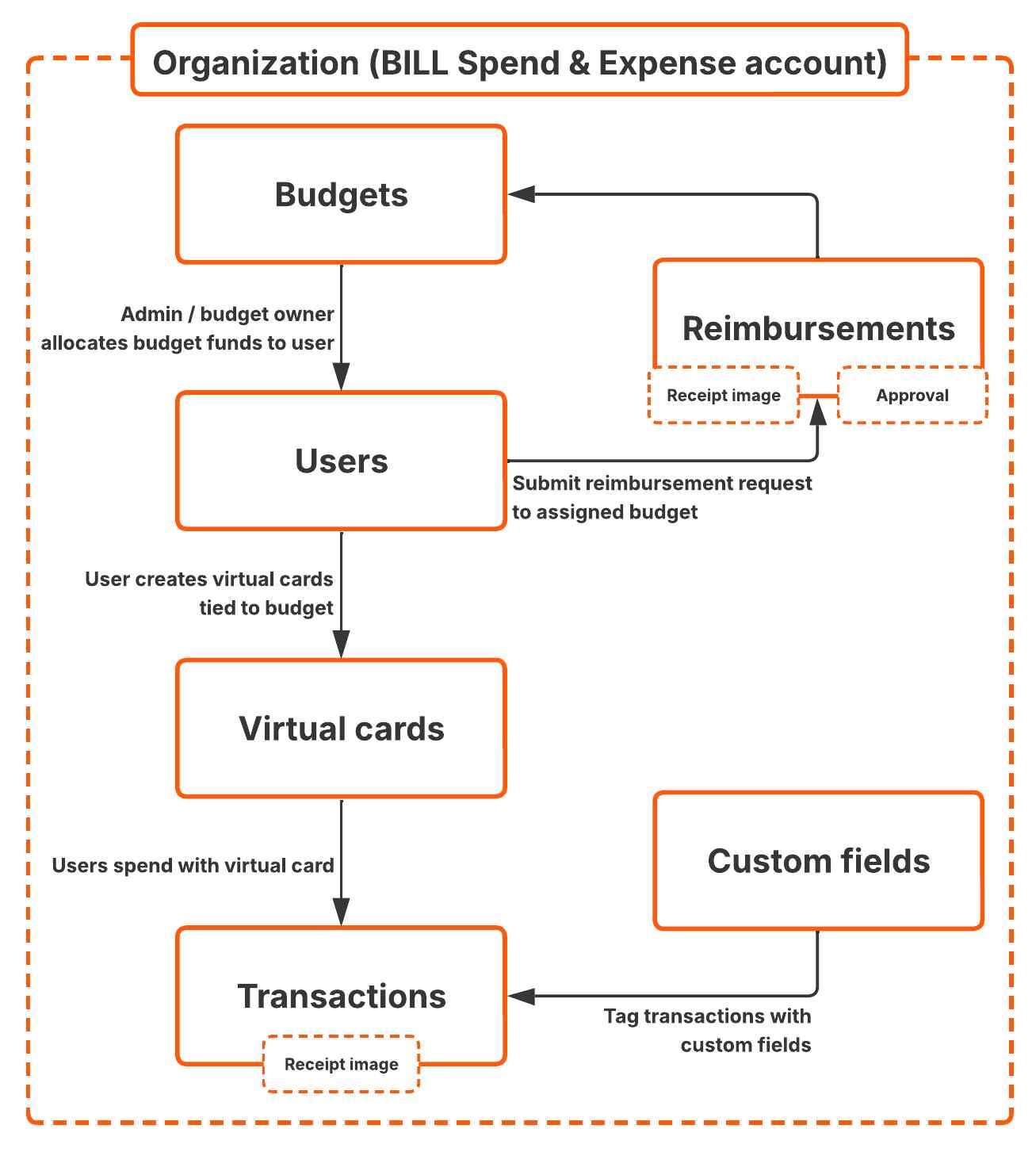
What you'll build
In this recipe, you create an integration with the BILL Spend & Expense API in the sandbox environment.
- Create a Spend & Expense user. Define the user role and personal information.
- Create a budget. Define a set of budget rules and assign the user to the budget.
- Create a temporary location and upload a receipt image for an out-of-pocket expense.
- Create a reimbursement request for a user and link it to an existing budget.
- Approve the reimbursement request to initiate the repayment process.
What you need before you begin
| Prerequisite | Description |
|---|---|
| API basics | A basic understanding of working with API endpoints. |
| API token | Your API token is required for your build with the BILL Spend & Expense API. If you have not set up your API token, sign up to create your sandbox BILL Spend & Expense account. When you sign up, you generate an API token. See Authentication with Spend & Expense API token in the BILL API documentation for detailed steps. |
Enter your generated API token
Enter your generated API token below. You use this apiToken in all subsequent BILL API requests.
https://gateway.stage.bill.com/connecthttps://gateway.prod.bill.com/connectChapter 1: Create a new Spend & Expense user
In this chapter, you create a new Spend & Expense user with the API.
As a Spend & Expense user, you can perform a set of Spend & Expense operations based on the user role (ADMIN, AUDITOR, BOOKKEEPER, or MEMBER). See User roles in BILL Spend & Expense in the BILL Help Center to learn about user roles.
When you create a new Spend & Expense user with POST /v3/spend/users, you create a new user record in your sandbox BILL Spend & Expense account. This user represents an employee in your business. In this workflow, you create a new MEMBER user. Click Body below to view an example body for the Create a user API request. Click Send to create a new user.
In the response, a BILL-generated Spend & Expense user uuid is available for the user you created. You can sign in to the BILL web app to view this created user in your Spend & Expense dashboard. In Chapter 2, you create a new budget for this user.
Chapter 2: Create a new budget
In this chapter, you create a new budget. A budget enables you to set spending policies and keep entire teams of users on budget. You can set up multiple budgets based on different needs, such as expiration date, limit, and budget reset interval.
Step 1: Get the budget owner user
To create a new budget, you first need the BILL-generated UUID of a budget owner. Think of this owner as an administrator that assigns budgets to employee users in your business. In this workflow, you use your own user UUID as the budget owner.
Click Send to get the BILL-generated UUID of the current user with GET /v3/spend/users/current.
In the response, you get the uuid of the current user. In Step 2, you use the uuid to create a new budget.
Step 2: Create a budget and assign the current user as the budget owner
Create a new MONTHLY budget of $200 with POST /v3/spend/budgets. In addition, the current user uuid from Step 1 is set as the budget owner.
Click Body below to view an example body for the Create a budget API request. Click Send to create a new budget.
In the response, a BILL-generated budget uuid is available. In addition, the budget policy rules are available, such as startDate, currentPeriod budget funds, and spent budget funds. You can sign in to the BILL web app to view this created budget in your Spend & Expense dashboard. In Chapter 3, you assign the `Clark Spenderson` user (created in Chapter 1) to the budget.
Chapter 3: Assign the user to the budget
In this chapter, you assign the `Clark Spenderson` user (created in Chapter 1) to the budget (created in Chapter 2). Click Body below to view an example body for the Add or update a budget member API request.
Click Send to assign the user to the budget with PUT /v3/spend/budgets/{budgetUuid}/members/{userUuid}.
In the response, you see that the `Clark Spenderson` user is assigned to the budget. In addition, the budget spend policy rules are assigned to the user. In Chapter 4, you create a reimbursement for the user (created in Chapter 1) to be repaid from budget funds for an out-of-pocket expense.
Chapter 4: Add a reimbursement receipt
In this chapter, you add a reimbursement receipt. A receipt is required for creating a reimbursement request.
In the next set of steps, you first create a reimbursement upload URL, and then you upload the receipt image for creating a reimbursement request.
Step 1: Create a reimbursement upload URL
When you create a reimbursement upload URL with POST /v3/spend/reimbursements/image-upload-url, you create a temporary location for uploading a receipt image.
Click Send to create a reimbursement upload URL API request for your receipt.
In the response, a BILL-generated upload url is available. In the next step, you use this url value to upload a receipt image.
Step 2: Upload a receipt image
Use the url (from Step 1) to upload a receipt image for the reimbursement.
BILL supports JPEG and PNG file formats for transaction images.
In this recipe, we use cURL to upload a receipt image for a reimbursement. In the cURL, the upload URL is the upload location, and receipt file path is the complete path to the receipt file. Open Terminal (on Mac), copy and run the cURL command generated in this step.
A 200 OK response confirms that the image is successfully uploaded to the provided url location. In the next chapter, you use the same location to create a reimbursement request.
Chapter 5: Create a reimbursement
In this chapter, you create a reimbursement request in your BILL organization. When you create a reimbursement with POST /v3/spend/reimbursements, you submit an out-of-pocket expense for repayment.
You can also submit a reimbursement request for an out-of-pocket expense with the BILL web app. See Submit an out-of-pocket reimbursement request in the BILL Help Center for more information.
Click Body below to view an example body for the Create a reimbursement API request. In the request, budgetId is set as the uuid of the budget funds (from Chapter 2) and userId is set as the userUuid of the user assigned to the budget who will receive funds (from Chapter 1). In this example, occurredDate is set as yesterday's date.
Finally, the receipts array includes the receipt image url location and filename (from Chapter 4).
Click Send to create a reimbursement.
In the response, a BILL-generated reimbursement uuid is available. In addition, status is set as AWAITING_APPROVAL and statusHistory provides details about the different stages of the reimbursement transaction.
You can sign in to the BILL web app to view the reimbursement created in your Spend & Expense dashboard.
Chapter 6: Approve a reimbursement
In this chapter, you approve the submitted reimbursement (created in Chapter 5).
BILL Spend & Expense users with the ADMIN user role can APPROVE or DENY reimbursement requests.
When you approve a reimbursement with POST /v3/spend/reimbursements/{reimbursementId}/action, the reimbursement request is marked as APPROVED in your BILL organization. In the request URL, the reimbursementId is set as the uuid of the reimbursement you created (created in Chapter 5).
Click Body below to view an example body for the Approve a reimbursement API request. In the request, action is set as APPROVE. In addition, a note is added to provide context for the approval. This note is optional.
Click Send to approve the reimbursement.
In the response, statusHistory is updated in the reimbursement transaction. The status is set as APPROVED. You can sign in to the BILL web app to see this status change.
With ACH reimbursements enabled, BILL sends the requested funds to the user in 5–7 US business days. If the organization processes reimbursements through payroll, the user receives funds after they are processed.
What you learned in this recipe
You just completed the BILL Spend & Expense reimbursement workflow with the BILL v3 API. You learned a lot along the way.
- Create a new Spend & Expense user. Assign the appropriate user role. Learn about the different user roles available.
- Create a new budget. Define a budget owner, and a set of budget rules.
- Assign the user to the budget.
- Add receipts for reimbursements by uploading image files.
- Create a reimbursement request and link it to a specific budget and user.
- Approve a pending reimbursement as an
ADMINuser.
Updated 3 months ago