
BILL Pay Faster workflow
With BILL AP payments, there are times when the ACH speed is not fast enough. Whether you are paying a last-minute utility bill or an urgent vendor payment, BILL Pay Faster gives you the tools to move money at the speed of your business.
In this recipe
In this recipe, you deliver AP payments to domestic (US) vendors with BILL Pay Faster Check and Pay Faster ACH. For check payments, BILL provides 3 options: UPS 1-day, UPS 2-days, and UPS 3-days. Based on when an ACH payment request is created, BILL delivers funds to vendors either on the same US business day or next US business day.
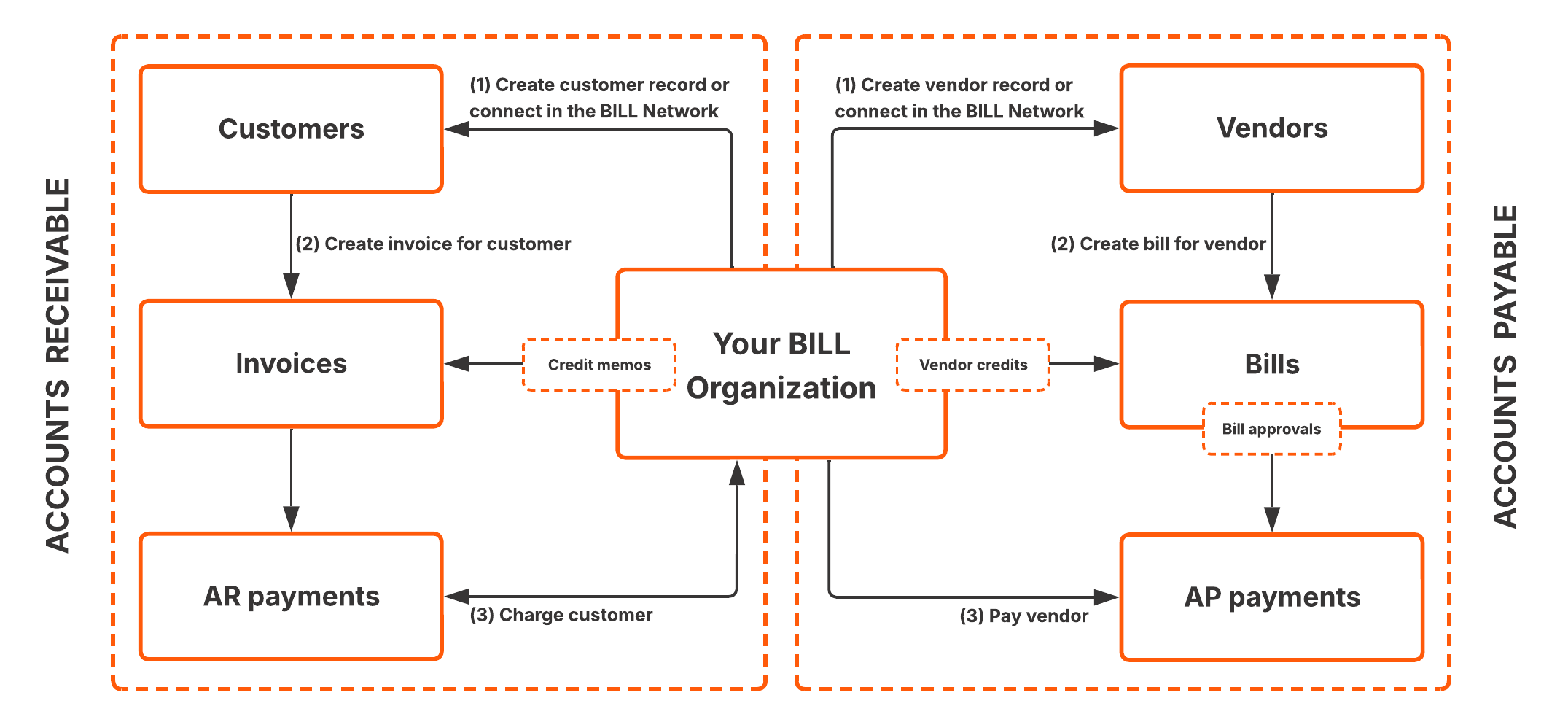
See AP payments acceleration options to learn about BILL Pay Faster options and pricing.
What you'll build
In this recipe, you create an integration with the BILL API in the sandbox environment.
- Pay a domestic (US) check vendor with BILL Pay Faster Check.
- Pay a domestic ACH vendor with BILL Pay Faster ACH.
What you need before you begin
| Prerequisite | Description |
|---|---|
| API basics | A basic understanding of working with API endpoints. |
| Credentials | Your credentials are required for you to build with the BILL AP & AR API. If you have not set up your credentials, sign up to create your sandbox BILL account. When you sign up, you create a test BILL organization, and you generate your username, password, organization ID, and developer key. See Sandbox API sign up for detailed steps. |
| MFA setup | Your MFA setup must be complete. BILL requires MFA for creating payments with the API. MFA at BILL requires a one-time setup. When you sign up with the BILL web app to generate your credentials, you complete 2-step verification/MFA with a valid phone number. |
| Test bank account | A test bank account added in your BILL organization. You use this test bank account to create a test payment in this recipe. See Sandbox API bank account setup for detailed steps. |
Chapter 1: API login
In this chapter, you login to your BILL account with the API.
To begin, enter your API login credentials in the fields below. See the What you need before you begin section in this recipe if you have not set up your credentials.
https://gateway.stage.bill.com/connecthttps://gateway.prod.bill.com/connectComplete your API login with the required credentials. Simply click Send to get a 200 OK response.
In the response, a new sessionId is available. You use this sessionId and your devKey in all subsequent BILL API requests. A 200 OK response confirms that you are a signed-in user. The sessionId expires after 35 minutes of inactivity. At that point, you are automatically signed out, and you must sign in again with the API login endpoint and generate a new sessionId.
Note that the trusted field in the response is set as false. When the API login session is MFA-trusted, the trusted field is set as true. You enable MFA in this API session in Chapter 2.
Chapter 2: MFA
In this chapter, you step up your current API session as MFA-trusted. BILL requires MFA for creating payments with the API. In the next set of steps, you first generate an MFA challenge, validate the MFA challenge, and then step-up the API login session as MFA-trusted.
Step 1: Generate MFA challenge
Generate an MFA challenge ID with POST /v3/mfa/challenge. Click Send. You receive a 6-digit token sent to your phone number.
In the response, a challengeId is available. You use this value in Step 2.
Step 2: Validate MFA challenge
Validate the MFA challenge with POST /v3/mfa/challenge/validate. In the request, set the required fields, and then click Send.
- Set
tokenas the 6-digit token sent to your phone number. - Set
deviceandmachineNameas a test device name. For example,test-device. Device name is required in the next step.
In the response, a rememberMeId is available. You use this value in Step 3.
Step 3: Step-up API session as MFA-trusted
Step-up your API session as MFA-trusted with POST /v3/mfa/step-up. In the request, set device as the device name used in Step 2, and then click Send. Your current API session is now MFA-trusted.
In the response, trusted is set as true. Your API session is now MFA-trusted.
Chapter 3: Vendor setup
In this chapter, you complete a set of setup steps before BILL Pay Faster is enabled in your BILL organization. When you create 5 payments for a vendor, you can then pay the vendor with BILL Pay Faster for payments under $10,000.
In the next set of steps, you first create a check vendor record and ACH vendor record in your organization. You then create 5 payments for each vendor record.
You are creating payments in the sandbox environment. In this environment, BILL simulates the AP payment experience. There are no checks printed or money movement when you create payments.
Step 1: Create a check vendor
A check vendor is a vendor that accepts check payments. Create a check vendor with the BILL web app.
- Sign in to the BILL web app. Use your developer account email address and password.
- Click Vendors > Add Vendor in your BILL account.
- Enter a unique Vendor name and click Continue.
- If BILL shows potential BILL Network connections, click Add vendor manually.
- Under How will this vendor be paid?, click Check.
- Enter any test address and email information, and then click Continue.
- Under Review vendor details, click Save vendor.
Step 2: Create check payments
- Click Payments Out > Pay a vendor in your BILL account.
- Under Pay a vendor, enter the required information, and then click Review & pay.
- Click Send payment.
BILL auto-generates a bill when the payment request is submitted. Repeat this process 4 more times to complete 5 payments for the check vendor.
Step 3: Create an ACH vendor
An ACH vendor is a vendor that accepts electronic ACH payments. Create an ACH vendor with the BILL web app.
- Sign in to the BILL web app. Use your developer account email address and password.
- Click Vendors > Add Vendor in your BILL account.
- Under Enter your vendor's information, enter the required information and click Continue.
- If BILL shows potential BILL Network connections, click Add vendor manually.
- Under How will this vendor be paid?, click Bank deposit (ACH).
- Enter the required test vendor account information, and then click Continue.
- Under Review vendor details, click Save vendor.
Step 4: Create ACH payments
When you complete 5 payments for the ACH vendor, BILL enables you to pay the vendor with BILL Pay Faster ACH.
- Click Payments Out > Pay a vendor in your BILL account.
- Under Pay a vendor, enter the required information, and then click Review & pay.
- Click Send payment.
Repeat this process 4 more times to complete 5 payments for the ACH vendor.
Chapter 4: Get vendor details
In this chapter, you get details about the check and ACH vendors you created in Chapter 3. You use the vendor id for creating BILL Pay Faster payments. Click Send to get the list of vendor records in your BILL organization with GET /v3/vendors.
In the request, the ?sort=createdTime:desc query parameter enables you to sort vendor records by createdTime in the descending order.
In the response, you get the test vendor id for each vendor record in your BILL organization. With the sort order query parameter in the request, the first 2 vendor records are the ones you created in Chapter 3. In the later chapters, you use the vendor id values to create BILL Pay Faster payments.
Chapter 5: BILL Pay Faster Check
In this chapter, you pay a check vendor with BILL Pay Faster Check. For check payments, BILL provides 3 Pay Faster options: UPS 1-day, UPS 2-days, and UPS 3-days.
For Pay Faster Check UPS 1-day, BILL processes the payment on the next US business day. If today is Monday, BILL processes the payment on Tuesday, and then the check is delivered to the vendor by UPS on Wednesday.
To enable BILL Pay Faster payments, you must complete 5 regular payments to the check vendor (instructions in Chapter 3).
In the next set of steps, you first get details about your test bank account, and then you create a BILL Pay Faster check payment.
Step 1: Get details about your test bank account
BILL requires information about your BILL organization bank account before you can create a payment. Click Send to get the list of test bank accounts in your BILL organization with GET /v3/funding-accounts/banks.
In the request, you add a filters query parameter to get a verified test bank account ("status": "VERIFIED"). If you do not have a test bank account in your sandbox BILL account, see Sandbox API bank account setup for detailed steps.
In the response, you get the test bank account id for each test bank account in your BILL organization. In the next step, you use the id of a verified test bank account ("status": "VERIFIED").
Step 2: BILL Pay Faster Check
When you create a BILL Pay Faster Check payment with POST /v3/payments, a payment record is created in your BILL organization.
Click Body below to view an example body for the Create a payment API request. In the request, vendorId is set as the id of the check vendor (from Chapter 4). In addition, the funding account id is set as the id of a verified test bank account (from Step 1).
Finally, the BILL Pay Faster Check payment configuration is set: requestPayFaster is set as true, and requestCheckDeliveryType is set as UPS_1DAY. Set this field as UPS_2DAY or UPS_3DAY for using the other Pay Faster Check options.
Click Send to create a new payment.
If processDate is not set in the request, BILL automatically sets this field.
You just paid a domestic check vendor with BILL Pay Faster. In the response, a BILL-generated payment id is available. You can sign in to the BILL web app to view this payment in your BILL organization. An email is also sent to your email address about the scheduled payment to the check vendor.
In the response, BILL sets processDate as the next US business day for UPS_1DAY. The BILL Pay Faster Check configuration is set under processingOptions. In addition, disbursementType is set as CHECK. When BILL starts processing this payment, an additional disbursementInfo object is available in the response. This object includes tracking information for you to track the delivery of the check payment.
Finally, singleStatus provides updates at different stages in a BILL payment lifecycle. Stages include SCHEDULED, FUNDING_STARTED, and CLEARED. See Single status payment values for the complete list of status values.
Chapter 6: BILL Pay Faster ACH
In this chapter, you pay an ACH vendor with BILL Pay Faster ACH. For ACH payments, BILL delivers Pay Faster payments as early as the current US business day. If the Pay Faster ACH payment is created before 10 AM PT on a US business day, BILL delivers the payment on the same day. If the payment is created 10 AM PT onwards, BILL delivers the payment on the next US business day.
To enable BILL Pay Faster payments, you must complete 5 regular payments to the ACH vendor (instructions in Chapter 3).
When you create a BILL Pay Faster ACH payment with POST /v3/payments, a payment record is created in your BILL organization.
Click Body below to view an example body for the Create a payment API request. In the request, vendorId is set as the id of the ACH vendor (from Chapter 4). In addition, the funding account id is set as the id of a verified test bank account (from Chapter 5 Step 1).
Finally, the BILL Pay Faster ACH payment configuration is set: requestPayFaster is set as true.
Click Send to create a new payment.
If processDate is not set in the request, BILL automatically sets this field based on whether the payment is created before 10 AM PT or 10 AM PT onwards.
You just paid a domestic ACH vendor with BILL Pay Faster. In the response, a BILL-generated payment id is available. You can sign in to the BILL web app to view this payment in your BILL organization. An email is also sent to your email address about the scheduled payment to the ACH vendor.
In the response, BILL automatically sets the processDate. The BILL Pay Faster ACH configuration is set under processingOptions. In addition, disbursementType is set as ACH. When BILL starts processing this payment, an additional disbursementInfo object is available in the response.
Finally, singleStatus provides updates at different stages in a BILL payment lifecycle. Stages include SCHEDULED, FUNDING_STARTED, and CLEARED. See Single status payment values for the complete list of status values.
What you learned in this recipe
You just created BILL Pay Faster payments for domestic vendors with the BILL v3 API. You learned a lot along the way.
- Create an API session and perform MFA step-up.
- Set up check and ACH vendors.
- Get a list of vendor records.
- Create a BILL Pay Faster Check and Pay Faster ACH payment.
Updated 3 months ago