
BILL AR workflow
The BILL v3 API gives you access to the same infrastructure that powers the BILL Accounts Payable (AP), Accounts Receivable (AR), and Spend & Expense (S&E) products. In addition, you can receive real-time event notifications with webhooks.
In this recipe
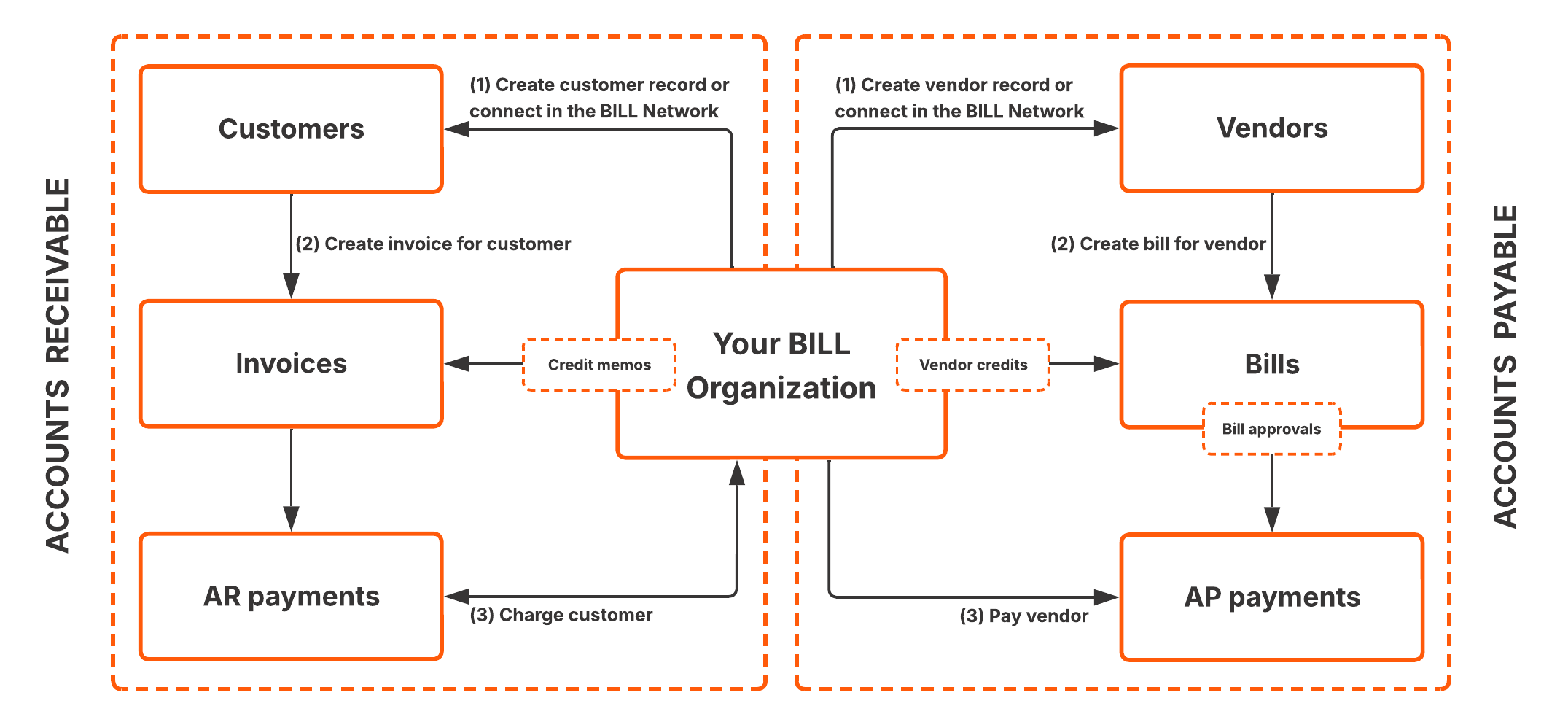
In this recipe, you build an AR workflow with the API. With this workflow, you set up a customer record in your BILL organization, create an invoice for the customer, and then charge the customer to get paid for the invoice.
What you'll build
In this recipe, you create an integration with the BILL API in the sandbox environment.
- Set up a customer record in your BILL organization. The record includes customer identification information.
- Add a customer bank account. With this bank account information, you can charge the customer to get paid for invoices.
- Create an invoice for the customer. The invoice represents an amount that you are owed by the customer.
- Charge the customer to get paid for the invoice. BILL transfers funds from the customer bank account to your BILL organization funding account.
What you need before you begin
| Prerequisite | Description |
|---|---|
| API basics | A basic understanding of working with API endpoints. |
| Credentials | Your credentials are required for you to build with the BILL AP & AR API. If you have not set up your credentials, sign up to create your sandbox BILL account. When you sign up, you create a test BILL organization, and you generate your username, password, organization ID, and developer key. See Sandbox API sign up for detailed steps. |
| Access to create a customer bank account with the API | Contact the BILL support team to get access to the Create a customer bank account feature with the API. If the feature is not enabled for your sandbox BILL organization, you will get the Current user or organization does not have valid permissions. error in the response. |
Chapter 1: API login
In this chapter, you login to your BILL account with the API.
To begin, enter your API login credentials in the fields below. See the What you need before you begin section in this recipe if you have not set up your credentials.
https://gateway.stage.bill.com/connecthttps://gateway.prod.bill.com/connectComplete your API login with the required credentials. Simply click Send to get a 200 OK response.
In the response, a new sessionId is available. You use this sessionId and your devKey in all subsequent BILL API requests. A 200 OK response confirms that you are a signed-in user. The sessionId expires after 35 minutes of inactivity. At that point, you are automatically signed out, and you must sign in again with the API login endpoint and generate a new sessionId.
Chapter 2: Set up a new customer record
In this chapter, you set up a new customer record in your BILL organization.
A customer in BILL is an organization that pays you for goods and services you provide. When you create a customer with POST /v3/customers, you add a new customer record in your BILL organization.
Click Body below to view an example body for the Create a customer API request. In the example body, the customer billingAddress information is added. The customer billingAddress is required before you can add a customer bank account.
Click Send to create a new customer record.
In the response, a BILL-generated customer id is available. You can sign in to the BILL web app to view this customer record in your BILL organization. The customer id is required for you to add a customer bank account in Chapter 3 and to create an invoice in Chapter 4.
Chapter 3: Add a customer bank account
In this chapter, you add a customer bank account with the API.
When you add a customer bank account with POST /v3/customers/{customerId}/bank-accounts, you can charge the customer for invoices with your BILL account. Click Body below to view an example body for the Create a customer bank account API request. Click Send to create a new customer bank account for the test customer (created in Chapter 2).
In the response, a BILL-generated customer bank account id is available. You can sign in to the BILL web app to view this added customer bank account in your BILL organization.
Chapter 4: Create an invoice
In this chapter, you create an invoice in your BILL organization.
An invoice represents an amount that you are owed by a customer for goods and services that your organization provides. When you create an invoice with POST /v3/invoices, you create a new invoice record for the test customer from Chapter 2.
The BILL invoice API operations are very powerful. While these operations do not feature in this AR workflow, you can leverage a set of features based on your use cases.
- In your Create an invoice API request, you can set
sendEmailastrueto send the created invoice to the customer email address. - After creating an invoice, you can get an invoice payment link with
POST /v3/invoices/{invoiceId}/payment-link, and then send the link to the customer for getting paid by the customer. With this link, the customer can complete the invoice payment without the need to set up a BILL account.
Click Body below to view an example body for the Create an invoice API request. Click Send to create a new invoice.
In the response, a BILL-generated invoice id is available. You can sign in to the BILL web app to view this invoice in your BILL organization. The customer id is displayed to show that the invoice is created for the customer.
With the customer record, customer bank account, and invoice, you are ready to charge the customer to get paid for the invoice. You complete the charge customer flow in the next set of chapters.
Chapter 5: Set charge customer authorization
In this chapter, you set the required one-time charge customer authorization.
By default, your BILL organization is not authorized to charge a customer. In your POST /v3/customers/{customerId}/charge-authorization request, set the required authorizedToCharge field as true. This one-time configuration confirms that your organization is authorized to charge the test customer for invoices.
Click Body below to view an example body for the Set charge customer authorization API request. Click Send to complete the authorization step.
In the response, the authorizedToCharge field is set as true. This confirms that your BILL organization is authorized to charge the test customer for invoices.
Chapter 6: Charge the customer to get paid
In this chapter, you charge the customer to get paid for an invoice with the API.
You are now ready to charge the test customer (created in Chapter 2) to get paid for an invoice (created in Chapter 4). When you charge a customer with POST /v3/receivable-payments, a received payment record is created in your BILL organization. In the request, the funding account id is set as the customer bank account id (created in Chapter 3).
Click Body below to view an example body for the Charge a customer API request. Click Send to charge a customer.
Congratulations! You have created a test customer charge. In the response, a BILL-generated received payment id is available. You can sign in to the BILL web app to view the status of this received payment in your BILL organization.
What you learned in this recipe
You just completed the AR workflow with the BILL v3 API. You learned a lot along the way.
- Create a test customer record in your BILL organization.
- Add a test customer bank account.
- Create an invoice for the customer.
- Charge the customer to get paid for the invoice.
Updated 3 months ago