
Bill approvals workflow
With the bill approvals API endpoints, you can make sure that the correct authority with proper clearance has signed off on that $20,000 bill payment.
In this recipe
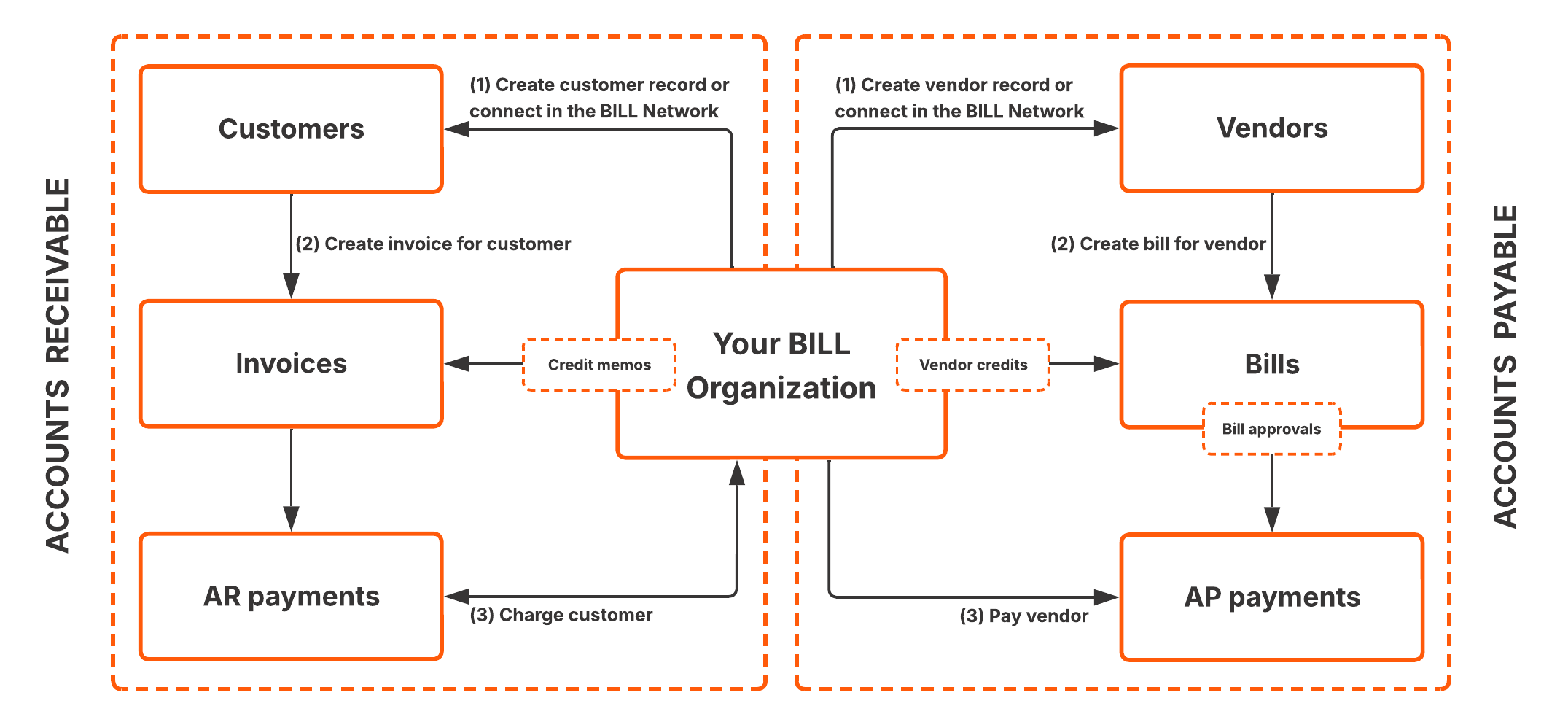
In this recipe, you build an API workflow that enables you to set up a bill approval policy, get the list of bills pending approval, and approve a bill for payment.
What you'll build
In this recipe, you create an integration with the BILL v3 API in the sandbox environment.
- Create a new bill approval policy. Assign an approver in the approval policy.
- Create a new bill. Confirm that BILL found a policy match for the bill, and that the bill has the correct approver assigned to it.
- In the approver's BILL account, get the list of bills pending approval. Confirm that the created bill is in the list.
- Approve the bill for payment. Confirm that the bill is approved for payment.
What you need before you begin
| Prerequisite | Description |
|---|---|
| API basics | A basic understanding of working with API endpoints. |
| Credentials | Your credentials are required for you to build with the BILL AP & AR API. If you have not set up your credentials, sign up to create your sandbox BILL account. When you sign up, you create a test BILL organization, and you generate your username, password, organization ID, and developer key. See Sandbox API sign up for detailed steps. When you sign up, you create a BILL account with the Administrator user role. In this recipe, you will use this account for creating a bill approval policy and for creating a bill. |
| Approver user | A second user in the sandbox BILL account with the Approver user role. Users with the Administrator, Accountant, and Approver user roles have permissions for bill approvals operations. See User roles and permissions in the BILL Help Center for more information. In this recipe, you will use the Approver user account for getting the list of bills pending approval and for approving a bill for payment. 1. To create a second user, sign in to the BILL web app, and click Settings > Users & roles > Users. 2. Click NEW to create a new user with a unique email address and set ROLE as Approver. 3. Click SAVE to create the user. BILL sends an activation email to the provided email address. 4. Click Activate in the email, create a password for this user, and complete your MFA requirements. You use this Approver email address and password in the later chapters. |
Chapter 1: Administrator API login
In this chapter, you login to your Administrator user BILL account with the API.
To begin, enter your API login credentials in the fields below. See the What you need before you begin section in this recipe if you have not set up your Administrator user credentials.
https://gateway.stage.bill.com/connecthttps://gateway.prod.bill.com/connectComplete your API login with the required credentials. Simply click Send to get a 200 OK response.
In the response, a new sessionId is available. You use this sessionId and your devKey in all subsequent BILL API requests. A 200 OK response confirms that you are a signed-in user. The sessionId expires after 35 minutes of inactivity. At that point, you are automatically signed out, and you must sign in again with the API login endpoint and generate a new sessionId.
Chapter 2: Create a new bill approval policy
In this chapter, you create a new bill approval policy with the API. A bill approval policy is a set of rules that enables you to control which bills require approval, by whom, and when. In this example, you create a bill approval policy for all bills with an amount greater than or equal to $1000.
Step 1: Get the Approver user ID
To create a bill approval policy, you first need the BILL-generated ID of the Approver user you set up for testing with the API endpoints in this recipe. Click Send to get the list of users in your BILL organization with GET /v3/users.
In the request, the ?filters=role.type:eq:"APPROVER"&sort=createdTime:desc query parameters enable you to list APPROVER users sorted by created time in the descending order. See the What you need before you begin section in this recipe if you have not created an Approver user.
In the response, you get the id for users in your BILL organization. In Step 2, use the id of the APPROVER user created in the What you need before you begin section.
Step 2: Create a bill approval policy with the Approver user ID
Create a new bill approval policy with POST /v3/bill-approvals/policies. In the request, set bill_approver_user_id as the id of the APPROVER user from Step 1. Click Body below to view an example body for the Create a bill approval policy API request. Click Send to create a new bill approval policy for all bills with an amount greater than or equal to $1000.
In the response, a BILL-generated bill approval policy id is available. You can sign in to the BILL web app to view this bill approval policy in your BILL organization. In Chapter 3, you create a bill to confirm that BILL found a policy match for the bill, and that the bill has the correct approver assigned to it.
Chapter 3: Create a bill
In this chapter, you create a bill with the API.
Step 1: Get list of vendors
To create a bill, you first need the BILL-generated ID of a vendor. Click Send to get the list of vendors with GET /v3/vendors.
In the request, the ?sort=createdTime:desc query parameter enables you to list vendors sorted by created time in the descending order.
Create a test vendor with the BILL web app if you do not have test vendors in your sandbox BILL account. Sign in to the BILL web app, click Vendors > Add Vendor, and complete the test vendor creation flow with any test information. The id of the test vendor will then be available in the GET /v3/vendors response below.
In the response, you get the id for each vendor in your BILL organization. In Step 2, you use the id for the first vendor in this list.
Step 2: Create a bill with bill approvals enabled
Create a new bill with POST /v3/bills. In the request, vendorId is set as the id of a vendor from Step 1. In addition, billApprovals is set as true for BILL to perform a policy match and to add approvals information in the response.
Click Body below to view an example body for the Create a bill API request. Click Send to create a new bill with an amount set as $1500.
In the response, a BILL-generated bill id is available. You can sign in to the BILL web app to view this bill in your BILL organization.
In addition, approvalStatus is set as ASSIGNED. This confirms that BILL found a policy match for the bill. An approvers array shows the APPROVER user assigned as an approver for the bill. Finally, status is set as WAITING to state that BILL is waiting for the APPROVER user to perform an approval action on the bill.
When BILL performs a policy match on a bill, the bill cannot be paid until all the required approvers have approved the bill for payment. The exception is that an ADMINISTRATOR user can pay bills without required approvals.
In Chapter 4, you complete the API login for the APPROVER user with POST /v3/login for approver operations in the bill approvals workflow.
Chapter 4: Approver API login
In this chapter, you complete API login with POST /v3/login for the APPROVER user. To begin, enter your API login credentials in the fields below.
Set username and password with the credentials of the APPROVER user. Set organizationId and devKey as the same values you used for the Administrator user API login.
See the What you need before you begin section in this recipe if you have not created an Approver user.
In the response, a new sessionId is available. You use this sessionId and your devKey in Chapters 5 and 6. A 200 OK response confirms that you are a signed-in user. As a signed in APPROVER user, you are now ready to perform approver operations.
Chapter 5: Get list of bills pending approval
In this chapter, you get a list of bills that are pending approval with the API.
To this point, as an ADMINISTRATOR user, you created a bill approval policy and you saw the BILL policy match operation in action when you created a bill. Now as a signed-in APPROVER user, click Send to get the list of bills pending approval with GET /v3/bill-approvals/pending-user-approvals.
In the response, you get the list of bills that are pending approval. This list includes the $1500 bill you created in Chapter 3. You can sign in to the BILL web app with the APPROVER user credentials to view this list of bills pending approval in your BILL organization.
In Chapter 6, you approve the $1500 bill from this list.
Chapter 6: Approve a bill for payment
In this chapter, you approve a bill for payment with the API.
Step 1: Approve the bill
As an APPROVER user, you have done your due diligence and are now ready to approve the $1500 bill. You communicate your decision with POST /v3/bill-approvals/actions. Click Body below to view an example body for the Approve or deny a bill API request. Click Send to approve the bill.
In the response, the bill approval status shows the approval status of the $1500 bill. You can sign in to the BILL web app with the APPROVER user credentials to see that this bill has been approved for payment.
Step 2: Confirm that the bill is approved
You can confirm that the bill is approved with the API. Get the bill details with GET /v3/bills/{billId} to view the approvers information in the response. In the request, billId is set as the id of the $1500 bill. Click Send to get the bill details.
In the response, the bill approval status is set as APPROVED. Congratulations! This bill is ready to be paid.
What you learned in this recipe
You just completed the bill approvals workflow with the BILL v3 API. You learned a lot along the way.
- Create a new bill approval policy. Assign an approver in the approval policy.
- Create a new bill. Confirm that BILL found a policy match for the bill, and that the bill has the correct approver assigned to it.
- In the approver's BILL account, get the list of bills pending approval. Confirm that the created bill is in the list.
- Approve the bill for payment. Confirm that the bill is approved for payment.
Updated 2 months ago